# Erreur due à des problèmes de droits sur le dossier Plugin (Mac OS 14 Sodoma)

##### Si après une nouvelle installation de Coraye sous Mac OS 14 Sodoma, vous avez l'erreur suivante qui apparait lors de la mesure avec votre spectrophotomètre, c'est que vous avez un problème de droits sur votre dossier Coraye.

[![Capture ecran 2025-02-27 Ã  14.33.03.png](https://wiki.coraye.com/uploads/images/gallery/2025-03/scaled-1680-/capture-ecran-2025-02-27-a-14-33-03.png)](https://wiki.coraye.com/uploads/images/gallery/2025-03/capture-ecran-2025-02-27-a-14-33-03.png)
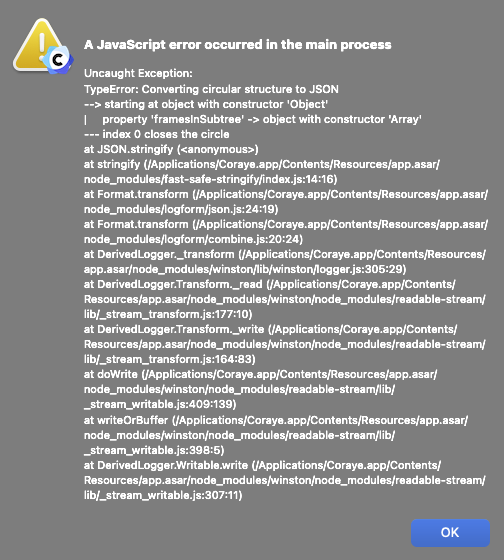
##### Voici la procédure 

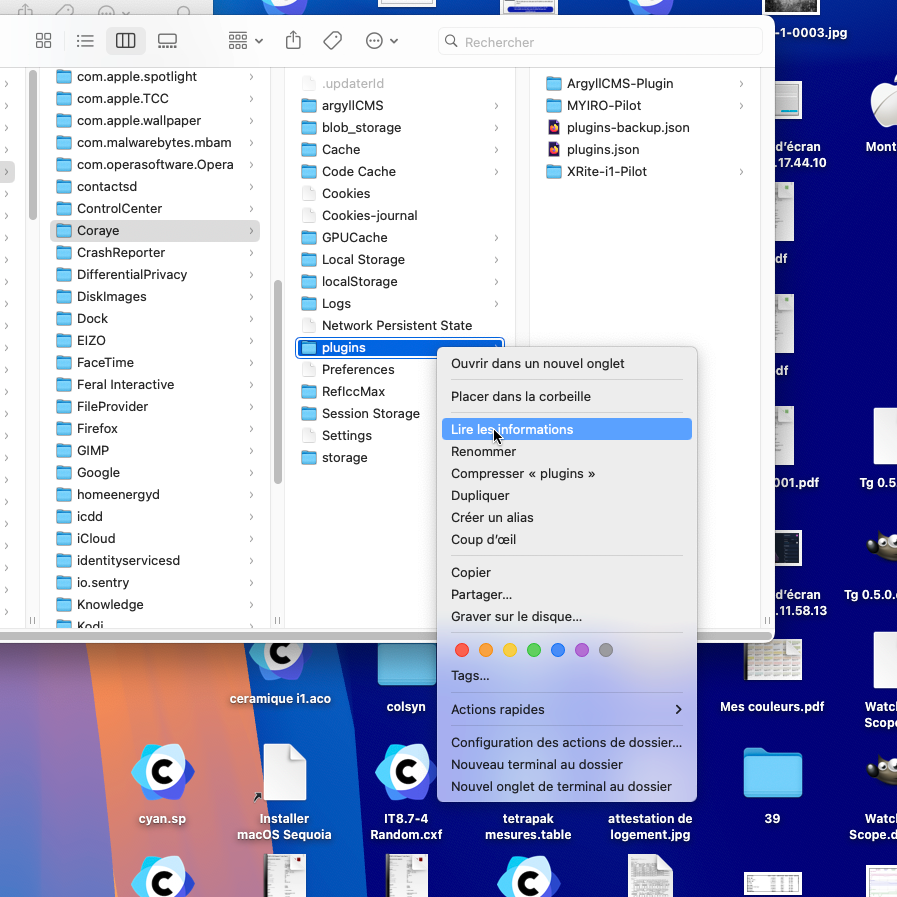
<span style="font-size: 12pt; font-family: 'Liberation Serif'; color: #000000; background-color: transparent; font-weight: 400; font-style: normal; font-variant: normal; text-decoration: none; vertical-align: baseline; white-space: pre-wrap;">L’installation ou l’exécution d’un logiciel ou d’un plugin est parfois lié à des autorisations manquantes. Pour vérifier ces autorisations et le cas échéant les corriger il faut sélectionner le dossier (ou fichier) avec un click droit de votre souris puis sélectionner dans le menu déroulant „lire les informations“.</span>

 **[![Droit Coraye 1.png](https://wiki.coraye.com/uploads/images/gallery/2025-03/scaled-1680-/droit-coraye-1.png)](https://wiki.coraye.com/uploads/images/gallery/2025-03/droit-coraye-1.png)**

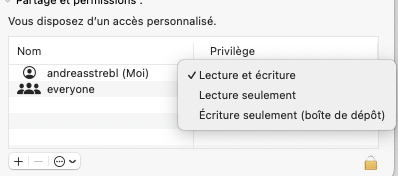
<span style="font-size: 12pt; font-family: 'Liberation Serif'; color: #000000; background-color: transparent; font-weight: 400; font-style: normal; font-variant: normal; text-decoration: none; vertical-align: baseline; white-space: pre-wrap;"> </span><span style="font-size: 12pt; font-family: 'Liberation Serif'; color: #000000; background-color: transparent; font-weight: 400; font-style: normal; font-variant: normal; text-decoration: none; vertical-align: baseline; white-space: pre-wrap;">Dans la fenêtre qui s’ouvre vérifiez vos droits et corrigez les si besoin en est.</span>

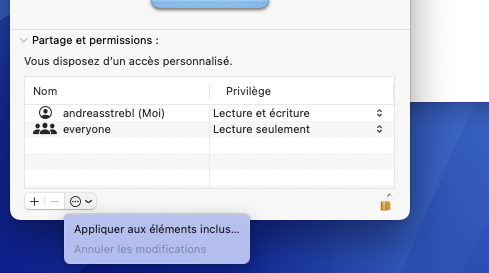
 **[![Droit Coraye 2.png](https://wiki.coraye.com/uploads/images/gallery/2025-03/scaled-1680-/droit-coraye-2.png)](https://wiki.coraye.com/uploads/images/gallery/2025-03/droit-coraye-2.png)** <span style="font-size: 12pt; font-family: 'Liberation Serif'; color: #000000; background-color: transparent; font-weight: 400; font-style: normal; font-variant: normal; text-decoration: none; vertical-align: baseline; white-space: pre-wrap;">Pour effectuer des changements vous devez d’abord déverrouiller le cadenas dans l’angle inférieur droite de la fenêtre puis saisir votre mot de passe.</span>

<span style="font-size: 12pt; font-family: 'Liberation Serif'; color: #000000; background-color: transparent; font-weight: 400; font-style: normal; font-variant: normal; text-decoration: none; vertical-align: baseline; white-space: pre-wrap;">Pensez à appliquer vos droits aussi au contenu dans le cas d’un dossier. </span>

 **[![Droits Coraye 3.png](https://wiki.coraye.com/uploads/images/gallery/2025-03/scaled-1680-/droits-coraye-3.png)](https://wiki.coraye.com/uploads/images/gallery/2025-03/droits-coraye-3.png)**

<span style="font-size: 12pt; font-family: 'Liberation Serif'; color: #000000; background-color: transparent; font-weight: 400; font-style: normal; font-variant: normal; text-decoration: none; vertical-align: baseline; white-space: pre-wrap;">Il est préférable de vérifier les droits pour chaque dossier dans lequel des fichiers seront créés lors de l’installation du logiciel ou du plugin.</span>

  
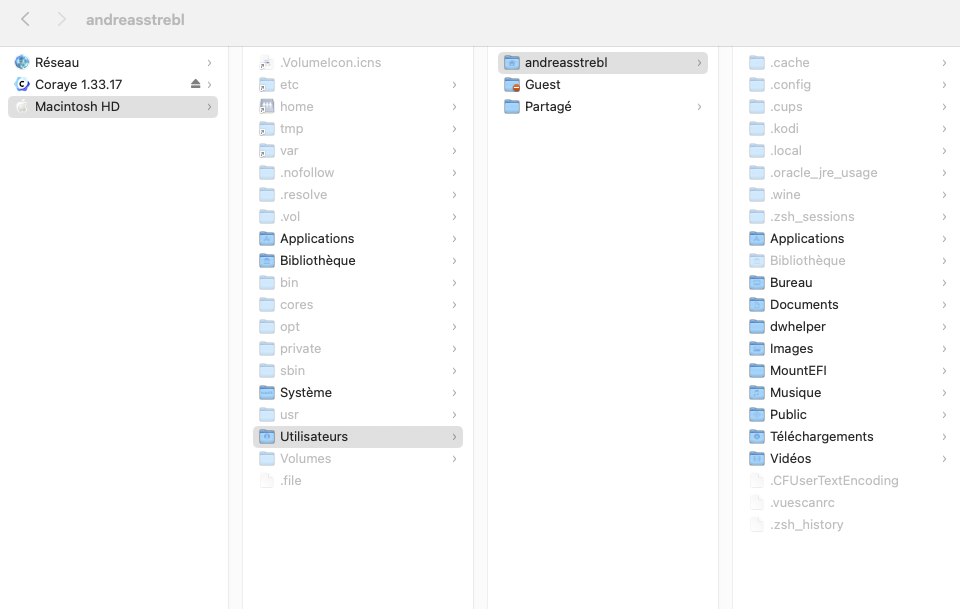
<span style="font-size: 12pt; font-family: 'Liberation Serif'; color: #000000; background-color: transparent; font-weight: 400; font-style: normal; font-variant: normal; text-decoration: none; vertical-align: baseline; white-space: pre-wrap;">Les fichiers de Coraye se trouvent dans le dossier MacHD → Utilisateurs → (Votre Nom utilisateur) → Bibliothèque → Application Support → Coraye</span><span style="font-size: 12pt; font-family: 'Liberation Serif'; color: #000000; background-color: transparent; font-weight: 400; font-style: normal; font-variant: normal; text-decoration: none; vertical-align: baseline; white-space: pre-wrap;">  
</span><span style="font-size: 12pt; font-family: 'Liberation Serif'; color: #000000; background-color: transparent; font-weight: 400; font-style: normal; font-variant: normal; text-decoration: none; vertical-align: baseline; white-space: pre-wrap;">Le dossier Bibliothèque est un dossier caché par défaut dans MacOS, il nous faut donc le rendre visible pour y effectuer des manipulations. Pour ça vous pouvez utiliser deux methodes.</span>

<span style="font-size: 12pt; font-family: 'Liberation Serif'; color: #000000; background-color: transparent; font-weight: 400; font-style: normal; font-variant: normal; text-decoration: none; vertical-align: baseline; white-space: pre-wrap;">A) Cliquez sur l’icône </span><span style="font-size: 12pt; font-family: 'Liberation Mono'; color: #000000; background-color: transparent; font-weight: 400; font-style: normal; font-variant: normal; text-decoration: none; vertical-align: baseline; white-space: pre-wrap;">Finder</span><span style="font-size: 12pt; font-family: 'Liberation Serif'; color: #000000; background-color: transparent; font-weight: 400; font-style: normal; font-variant: normal; text-decoration: none; vertical-align: baseline; white-space: pre-wrap;"> dans votre Dock pour lancer une nouvelle fenêtre </span><span style="font-size: 12pt; font-family: 'Liberation Mono'; color: #000000; background-color: transparent; font-weight: 400; font-style: normal; font-variant: normal; text-decoration: none; vertical-align: baseline; white-space: pre-wrap;">Finder</span><span style="font-size: 12pt; font-family: 'Liberation Serif'; color: #000000; background-color: transparent; font-weight: 400; font-style: normal; font-variant: normal; text-decoration: none; vertical-align: baseline; white-space: pre-wrap;">. </span>

1. <span style="font-size: 12pt; font-family: 'Liberation Serif'; color: #000000; background-color: transparent; font-weight: 400; font-style: normal; font-variant: normal; text-decoration: none; vertical-align: baseline; white-space: pre-wrap;">Accédez au dossier </span><span style="font-size: 12pt; font-family: 'Liberation Mono'; color: #000000; background-color: transparent; font-weight: 400; font-style: normal; font-variant: normal; text-decoration: none; vertical-align: baseline; white-space: pre-wrap;">(Votre Nom utilisateur)</span><span style="font-size: 12pt; font-family: 'Liberation Serif'; color: #000000; background-color: transparent; font-weight: 400; font-style: normal; font-variant: normal; text-decoration: none; vertical-align: baseline; white-space: pre-wrap;">. </span>
2. <span style="font-size: 12pt; font-family: 'Liberation Serif'; color: #000000; background-color: transparent; font-weight: 400; font-style: normal; font-variant: normal; text-decoration: none; vertical-align: baseline; white-space: pre-wrap;">Maintenez simultanément </span><span style="font-size: 12pt; font-family: 'Liberation Mono'; color: #000000; background-color: transparent; font-weight: 400; font-style: normal; font-variant: normal; text-decoration: none; vertical-align: baseline; white-space: pre-wrap;">Command (⌘) + Shift (⇧) + Dot (.)</span><span style="font-size: 12pt; font-family: 'Liberation Serif'; color: #000000; background-color: transparent; font-weight: 400; font-style: normal; font-variant: normal; text-decoration: none; vertical-align: baseline; white-space: pre-wrap;">. </span>
3. <span style="font-size: 12pt; font-family: 'Liberation Serif'; color: #000000; background-color: transparent; font-weight: 400; font-style: normal; font-variant: normal; text-decoration: none; vertical-align: baseline; white-space: pre-wrap;">Les fichiers et dossiers cachés apparaîtront désormais semi-transparents dans la fenêtre </span><span style="font-size: 12pt; font-family: 'Liberation Mono'; color: #000000; background-color: transparent; font-weight: 400; font-style: normal; font-variant: normal; text-decoration: none; vertical-align: baseline; white-space: pre-wrap;">Finder</span><span style="font-size: 12pt; font-family: 'Liberation Serif'; color: #000000; background-color: transparent; font-weight: 400; font-style: normal; font-variant: normal; text-decoration: none; vertical-align: baseline; white-space: pre-wrap;">. </span>
4. <span style="font-size: 12pt; font-family: 'Liberation Serif'; color: #000000; background-color: transparent; font-weight: 400; font-style: normal; font-variant: normal; text-decoration: none; vertical-align: baseline; white-space: pre-wrap;">Pour masquer à nouveau les fichiers et dossiers cachés, répétez simplement l’étape 3. </span>

<span style="font-size: 12pt; font-family: 'Liberation Serif'; color: #000000; background-color: transparent; font-weight: 400; font-style: normal; font-variant: normal; text-decoration: none; vertical-align: baseline; white-space: pre-wrap;">Cette méthode ne rend visible que les dossiers et fichiers se trouvant à la racine du dossier choisi. Pour afficher les dossiers et autres fichiers cachés plus loin vous devez répéter cette manipulation dans chaque dossier. (Dans notre cas ça ne sera pas néccessaire)</span>

<span style="font-size: 12pt; font-family: 'Liberation Serif'; color: #000000; background-color: transparent; font-weight: 400; font-style: normal; font-variant: normal; text-decoration: none; vertical-align: baseline; white-space: pre-wrap;">B) Ouvrez </span><span style="font-size: 12pt; font-family: 'Liberation Mono'; color: #000000; background-color: transparent; font-weight: 400; font-style: normal; font-variant: normal; text-decoration: none; vertical-align: baseline; white-space: pre-wrap;">Terminal</span><span style="font-size: 12pt; font-family: 'Liberation Serif'; color: #000000; background-color: transparent; font-weight: 400; font-style: normal; font-variant: normal; text-decoration: none; vertical-align: baseline; white-space: pre-wrap;"> situé dans </span><span style="font-size: 12pt; font-family: 'Liberation Serif'; color: #000000; background-color: transparent; font-weight: bold; font-style: normal; font-variant: normal; text-decoration: none; vertical-align: baseline; white-space: pre-wrap;">Applications</span><span style="font-size: 12pt; font-family: 'Liberation Mono'; color: #000000; background-color: transparent; font-weight: 400; font-style: normal; font-variant: normal; text-decoration: none; vertical-align: baseline; white-space: pre-wrap;"> &gt; </span><span style="font-size: 12pt; font-family: 'Liberation Serif'; color: #000000; background-color: transparent; font-weight: bold; font-style: normal; font-variant: normal; text-decoration: none; vertical-align: baseline; white-space: pre-wrap;">Utilities</span><span style="font-size: 12pt; font-family: 'Liberation Serif'; color: #000000; background-color: transparent; font-weight: 400; font-style: normal; font-variant: normal; text-decoration: none; vertical-align: baseline; white-space: pre-wrap;">. Vous pouvez également utiliser </span><span style="font-size: 12pt; font-family: 'Liberation Mono'; color: #000000; background-color: transparent; font-weight: 400; font-style: normal; font-variant: normal; text-decoration: none; vertical-align: baseline; white-space: pre-wrap;">Spotlight</span><span style="font-size: 12pt; font-family: 'Liberation Serif'; color: #000000; background-color: transparent; font-weight: 400; font-style: normal; font-variant: normal; text-decoration: none; vertical-align: baseline; white-space: pre-wrap;"> en appuyant sur </span><span style="font-size: 12pt; font-family: 'Liberation Mono'; color: #000000; background-color: transparent; font-weight: 400; font-style: normal; font-variant: normal; text-decoration: none; vertical-align: baseline; white-space: pre-wrap;">Command (⌘) + Space</span><span style="font-size: 12pt; font-family: 'Liberation Serif'; color: #000000; background-color: transparent; font-weight: 400; font-style: normal; font-variant: normal; text-decoration: none; vertical-align: baseline; white-space: pre-wrap;">, saisissez </span><span style="font-size: 12pt; font-family: 'Liberation Mono'; color: #000000; background-color: transparent; font-weight: 400; font-style: normal; font-variant: normal; text-decoration: none; vertical-align: baseline; white-space: pre-wrap;">Terminal</span><span style="font-size: 12pt; font-family: 'Liberation Serif'; color: #000000; background-color: transparent; font-weight: 400; font-style: normal; font-variant: normal; text-decoration: none; vertical-align: baseline; white-space: pre-wrap;"> dans la zone de texte et appuyez sur </span><span style="font-size: 12pt; font-family: 'Liberation Mono'; color: #000000; background-color: transparent; font-weight: 400; font-style: normal; font-variant: normal; text-decoration: none; vertical-align: baseline; white-space: pre-wrap;">Enter</span><span style="font-size: 12pt; font-family: 'Liberation Serif'; color: #000000; background-color: transparent; font-weight: 400; font-style: normal; font-variant: normal; text-decoration: none; vertical-align: baseline; white-space: pre-wrap;">. </span>

1. <span style="font-size: 12pt; font-family: 'Liberation Serif'; color: #000000; background-color: transparent; font-weight: 400; font-style: normal; font-variant: normal; text-decoration: none; vertical-align: baseline; white-space: pre-wrap;">Pour afficher les fichiers cachés, saisissez ou collez la commande Terminal suivante : </span><span style="font-size: 12pt; font-family: 'Liberation Serif'; color: #000000; background-color: transparent; font-weight: 400; font-style: italic; font-variant: normal; text-decoration: none; vertical-align: baseline; white-space: pre-wrap;">defaults write com.apple.Finder AppleShowAllFiles true</span><span style="font-size: 12pt; font-family: 'Liberation Serif'; color: #000000; background-color: transparent; font-weight: 400; font-style: normal; font-variant: normal; text-decoration: none; vertical-align: baseline; white-space: pre-wrap;"> et appuyez sur </span><span style="font-size: 12pt; font-family: 'Liberation Mono'; color: #000000; background-color: transparent; font-weight: bold; font-style: normal; font-variant: normal; text-decoration: none; vertical-align: baseline; white-space: pre-wrap;">Enter</span><span style="font-size: 12pt; font-family: 'Liberation Serif'; color: #000000; background-color: transparent; font-weight: 400; font-style: normal; font-variant: normal; text-decoration: none; vertical-align: baseline; white-space: pre-wrap;"> </span>
2. <span style="font-size: 12pt; font-family: 'Liberation Serif'; color: #000000; background-color: transparent; font-weight: 400; font-style: normal; font-variant: normal; text-decoration: none; vertical-align: baseline; white-space: pre-wrap;">Tapez la commande </span><span style="font-size: 12pt; font-family: 'Liberation Serif'; color: #000000; background-color: transparent; font-weight: 400; font-style: italic; font-variant: normal; text-decoration: none; vertical-align: baseline; white-space: pre-wrap;">killall Finder</span><span style="font-size: 12pt; font-family: 'Liberation Serif'; color: #000000; background-color: transparent; font-weight: 400; font-style: normal; font-variant: normal; text-decoration: none; vertical-align: baseline; white-space: pre-wrap;"> et appuyez sur </span><span style="font-size: 12pt; font-family: 'Liberation Mono'; color: #000000; background-color: transparent; font-weight: 400; font-style: normal; font-variant: normal; text-decoration: none; vertical-align: baseline; white-space: pre-wrap;">Enter</span><span style="font-size: 12pt; font-family: 'Liberation Serif'; color: #000000; background-color: transparent; font-weight: 400; font-style: normal; font-variant: normal; text-decoration: none; vertical-align: baseline; white-space: pre-wrap;"> pour relancer </span><span style="font-size: 12pt; font-family: 'Liberation Mono'; color: #000000; background-color: transparent; font-weight: 400; font-style: normal; font-variant: normal; text-decoration: none; vertical-align: baseline; white-space: pre-wrap;">Finder</span><span style="font-size: 12pt; font-family: 'Liberation Serif'; color: #000000; background-color: transparent; font-weight: 400; font-style: normal; font-variant: normal; text-decoration: none; vertical-align: baseline; white-space: pre-wrap;"> et appliquer les modifications</span>

<span style="font-size: 12pt; font-family: 'Liberation Serif'; color: #000000; background-color: transparent; font-weight: 400; font-style: normal; font-variant: normal; text-decoration: none; vertical-align: baseline; white-space: pre-wrap;">Pour cacher de nouveau les fichiers et dossiers </span>

<span style="font-size: 12pt; font-family: 'Liberation Serif'; color: #000000; background-color: transparent; font-weight: 400; font-style: normal; font-variant: normal; text-decoration: none; vertical-align: baseline; white-space: pre-wrap;">Ouvrez </span><span style="font-size: 12pt; font-family: 'Liberation Mono'; color: #000000; background-color: transparent; font-weight: 400; font-style: normal; font-variant: normal; text-decoration: none; vertical-align: baseline; white-space: pre-wrap;">Terminal</span><span style="font-size: 12pt; font-family: 'Liberation Serif'; color: #000000; background-color: transparent; font-weight: 400; font-style: normal; font-variant: normal; text-decoration: none; vertical-align: baseline; white-space: pre-wrap;"> situé dans </span><span style="font-size: 12pt; font-family: 'Liberation Serif'; color: #000000; background-color: transparent; font-weight: bold; font-style: normal; font-variant: normal; text-decoration: none; vertical-align: baseline; white-space: pre-wrap;">Applications</span><span style="font-size: 12pt; font-family: 'Liberation Mono'; color: #000000; background-color: transparent; font-weight: 400; font-style: normal; font-variant: normal; text-decoration: none; vertical-align: baseline; white-space: pre-wrap;"> &gt; </span><span style="font-size: 12pt; font-family: 'Liberation Serif'; color: #000000; background-color: transparent; font-weight: bold; font-style: normal; font-variant: normal; text-decoration: none; vertical-align: baseline; white-space: pre-wrap;">Utilities</span><span style="font-size: 12pt; font-family: 'Liberation Serif'; color: #000000; background-color: transparent; font-weight: 400; font-style: normal; font-variant: normal; text-decoration: none; vertical-align: baseline; white-space: pre-wrap;">. Vous pouvez également utiliser </span><span style="font-size: 12pt; font-family: 'Liberation Mono'; color: #000000; background-color: transparent; font-weight: 400; font-style: normal; font-variant: normal; text-decoration: none; vertical-align: baseline; white-space: pre-wrap;">Spotlight</span><span style="font-size: 12pt; font-family: 'Liberation Serif'; color: #000000; background-color: transparent; font-weight: 400; font-style: normal; font-variant: normal; text-decoration: none; vertical-align: baseline; white-space: pre-wrap;"> en appuyant sur </span><span style="font-size: 12pt; font-family: 'Liberation Mono'; color: #000000; background-color: transparent; font-weight: 400; font-style: normal; font-variant: normal; text-decoration: none; vertical-align: baseline; white-space: pre-wrap;">Command (⌘) + Space</span><span style="font-size: 12pt; font-family: 'Liberation Serif'; color: #000000; background-color: transparent; font-weight: 400; font-style: normal; font-variant: normal; text-decoration: none; vertical-align: baseline; white-space: pre-wrap;">, saisissez </span><span style="font-size: 12pt; font-family: 'Liberation Mono'; color: #000000; background-color: transparent; font-weight: 400; font-style: normal; font-variant: normal; text-decoration: none; vertical-align: baseline; white-space: pre-wrap;">Terminal</span><span style="font-size: 12pt; font-family: 'Liberation Serif'; color: #000000; background-color: transparent; font-weight: 400; font-style: normal; font-variant: normal; text-decoration: none; vertical-align: baseline; white-space: pre-wrap;"> dans la zone de texte et appuyez sur </span><span style="font-size: 12pt; font-family: 'Liberation Mono'; color: #000000; background-color: transparent; font-weight: 400; font-style: normal; font-variant: normal; text-decoration: none; vertical-align: baseline; white-space: pre-wrap;">Enter</span><span style="font-size: 12pt; font-family: 'Liberation Serif'; color: #000000; background-color: transparent; font-weight: 400; font-style: normal; font-variant: normal; text-decoration: none; vertical-align: baseline; white-space: pre-wrap;">. </span>

1. <span style="font-size: 12pt; font-family: 'Liberation Serif'; color: #000000; background-color: transparent; font-weight: 400; font-style: normal; font-variant: normal; text-decoration: none; vertical-align: baseline; white-space: pre-wrap;">Saisissez ou collez la commande Terminal suivante : </span><span style="font-size: 12pt; font-family: 'Liberation Serif'; color: #000000; background-color: transparent; font-weight: 400; font-style: italic; font-variant: normal; text-decoration: none; vertical-align: baseline; white-space: pre-wrap;">defaults write com.apple.Finder AppleShowAllFiles false et appuyez sur </span><span style="font-size: 12pt; font-family: 'Liberation Mono'; color: #000000; background-color: transparent; font-weight: bold; font-style: normal; font-variant: normal; text-decoration: none; vertical-align: baseline; white-space: pre-wrap;">Enter</span><span style="font-size: 12pt; font-family: 'Liberation Serif'; color: #000000; background-color: transparent; font-weight: 400; font-style: italic; font-variant: normal; text-decoration: none; vertical-align: baseline; white-space: pre-wrap;"> </span>
2. <span style="font-size: 12pt; font-family: 'Liberation Serif'; color: #000000; background-color: transparent; font-weight: 400; font-style: normal; font-variant: normal; text-decoration: none; vertical-align: baseline; white-space: pre-wrap;">Tapez la commande </span><span style="font-size: 12pt; font-family: 'Liberation Serif'; color: #000000; background-color: transparent; font-weight: 400; font-style: italic; font-variant: normal; text-decoration: none; vertical-align: baseline; white-space: pre-wrap;">killall Finder</span><span style="font-size: 12pt; font-family: 'Liberation Serif'; color: #000000; background-color: transparent; font-weight: 400; font-style: normal; font-variant: normal; text-decoration: none; vertical-align: baseline; white-space: pre-wrap;"> et appuyez sur </span><span style="font-size: 12pt; font-family: 'Liberation Mono'; color: #000000; background-color: transparent; font-weight: bold; font-style: normal; font-variant: normal; text-decoration: none; vertical-align: baseline; white-space: pre-wrap;">Enter</span><span style="font-size: 12pt; font-family: 'Liberation Serif'; color: #000000; background-color: transparent; font-weight: 400; font-style: normal; font-variant: normal; text-decoration: none; vertical-align: baseline; white-space: pre-wrap;"> pour relancer </span><span style="font-size: 12pt; font-family: 'Liberation Mono'; color: #000000; background-color: transparent; font-weight: 400; font-style: normal; font-variant: normal; text-decoration: none; vertical-align: baseline; white-space: pre-wrap;">Finder</span><span style="font-size: 12pt; font-family: 'Liberation Serif'; color: #000000; background-color: transparent; font-weight: 400; font-style: normal; font-variant: normal; text-decoration: none; vertical-align: baseline; white-space: pre-wrap;"> et appliquer les modifications.</span><span style="font-size: 12pt; font-family: 'Liberation Serif'; color: #000000; background-color: transparent; font-weight: 400; font-style: normal; font-variant: normal; text-decoration: none; vertical-align: baseline; white-space: pre-wrap;">  
    </span><span style="font-size: 12pt; font-family: 'Liberation Serif'; color: #000000; background-color: transparent; font-weight: 400; font-style: normal; font-variant: normal; text-decoration: none; vertical-align: baseline; white-space: pre-wrap;">  
    </span><span style="font-size: 12pt; font-family: 'Liberation Serif'; color: #000000; background-color: transparent; font-weight: 400; font-style: normal; font-variant: normal; text-decoration: none; vertical-align: baseline; white-space: pre-wrap;">Cette méthode rend visible toutes les fichiers et dossiers cachés sur votre Mac. Désormais les fichiers cachés sont visibles en grisé.</span>

 **[![Droits Coraye 4.png](https://wiki.coraye.com/uploads/images/gallery/2025-03/scaled-1680-/droits-coraye-4.png)](https://wiki.coraye.com/uploads/images/gallery/2025-03/droits-coraye-4.png)** <span style="font-size: 12pt; font-family: 'Liberation Serif'; color: #000000; background-color: transparent; font-weight: 400; font-style: normal; font-variant: normal; text-decoration: none; vertical-align: baseline; white-space: pre-wrap;">Vérifiez vos droits pour les dossiers suivants :</span>

- <span style="font-size: 12pt; font-family: 'Liberation Serif'; color: #000000; background-color: transparent; font-weight: 400; font-style: normal; font-variant: normal; text-decoration: none; vertical-align: baseline; white-space: pre-wrap;">Votre disque de travail (généralement Macintosh HD)</span><span style="font-size: 12pt; font-family: 'Liberation Serif'; color: #000000; background-color: transparent; font-weight: 400; font-style: normal; font-variant: normal; text-decoration: none; vertical-align: baseline; white-space: pre-wrap;">  
    </span><span style="font-size: 12pt; font-family: 'Liberation Serif'; color: #000000; background-color: transparent; font-weight: 400; font-style: normal; font-variant: normal; text-decoration: none; vertical-align: baseline; white-space: pre-wrap;">Utilisateurs</span>
- <span style="font-size: 12pt; font-family: 'Liberation Serif'; color: #000000; background-color: transparent; font-weight: 400; font-style: normal; font-variant: normal; text-decoration: none; vertical-align: baseline; white-space: pre-wrap;">Le dossier qui porte votre nom d’utilisateur</span>
- <span style="font-size: 12pt; font-family: 'Liberation Serif'; color: #000000; background-color: transparent; font-weight: 400; font-style: normal; font-variant: normal; text-decoration: none; vertical-align: baseline; white-space: pre-wrap;">Bibliothèque</span>
- <span style="font-size: 12pt; font-family: 'Liberation Serif'; color: #000000; background-color: transparent; font-weight: 400; font-style: normal; font-variant: normal; text-decoration: none; vertical-align: baseline; white-space: pre-wrap;">Application support</span>
- <span style="font-size: 12pt; font-family: 'Liberation Serif'; color: #000000; background-color: transparent; font-weight: 400; font-style: normal; font-variant: normal; text-decoration: none; vertical-align: baseline; white-space: pre-wrap;">Coraye</span>
- <span style="font-size: 12pt; font-family: 'Liberation Serif'; color: #000000; background-color: transparent; font-weight: 400; font-style: normal; font-variant: normal; text-decoration: none; vertical-align: baseline; white-space: pre-wrap;">Plugins</span>

<span style="font-size: 12pt; font-family: 'Liberation Serif'; color: #000000; background-color: transparent; font-weight: 400; font-style: normal; font-variant: normal; text-decoration: none; vertical-align: baseline; white-space: pre-wrap;">Le dossier qui porte le nom de votre plugin.</span>

<span style="font-weight: normal;">  


</span>